
ETLA Conference: A Time of Growth, Collaboration, and Inspiration
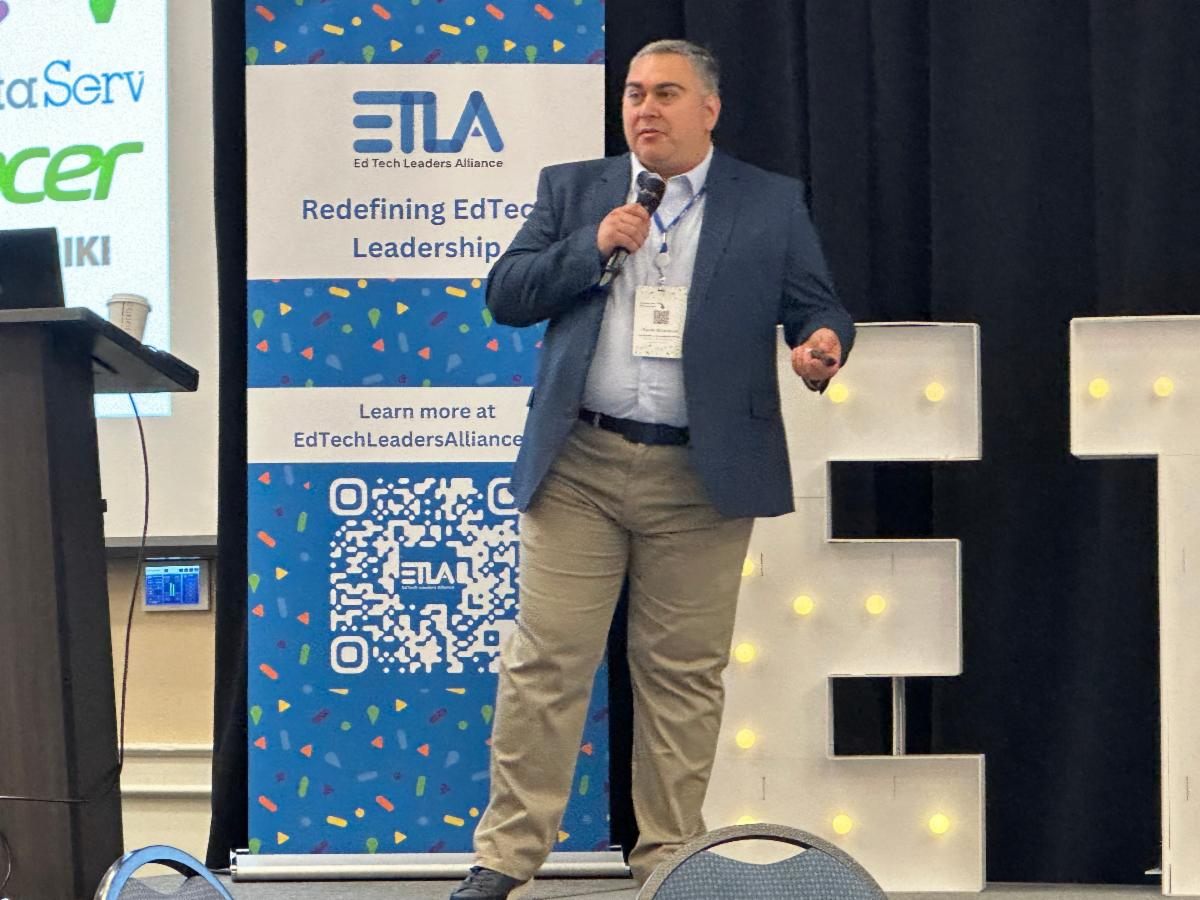
The EdTech Leaders Alliance (ETLA) Conference has once again proven to be a pivotal event for Ohio's educational community, bringing together innovative minds, passionate educators, and leaders in the field of educational technology. This year’s conference was packed with meaningful moments, key takeaways, and a renewed sense of excitement about the future of education.
ETLA's Growth
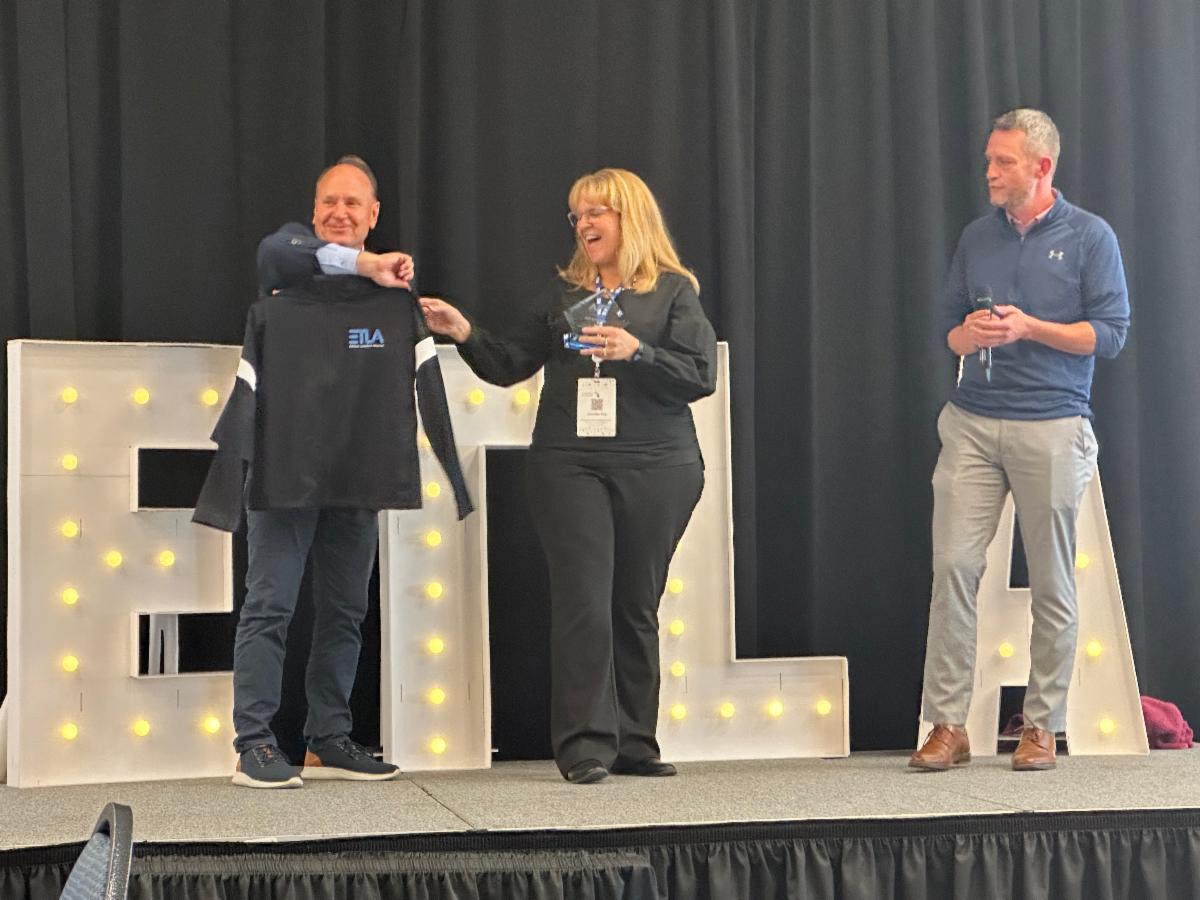
ETLA continues to grow not only in size but in impact. The conference saw record attendance, with educators from across Ohio joining forces to share ideas, explore new technologies, and reflect on the most pressing issues in education. The growth of ETLA is a testament to its core mission: empowering educators to become leaders in the integration of technology in their schools. Through professional development, peer networking, and vendor partnerships, ETLA has solidified its place as Ohio’s premier platform for EdTech collaboration and leadership.
Time for Ohio Educators to Collaborate, Learn, and Inspire
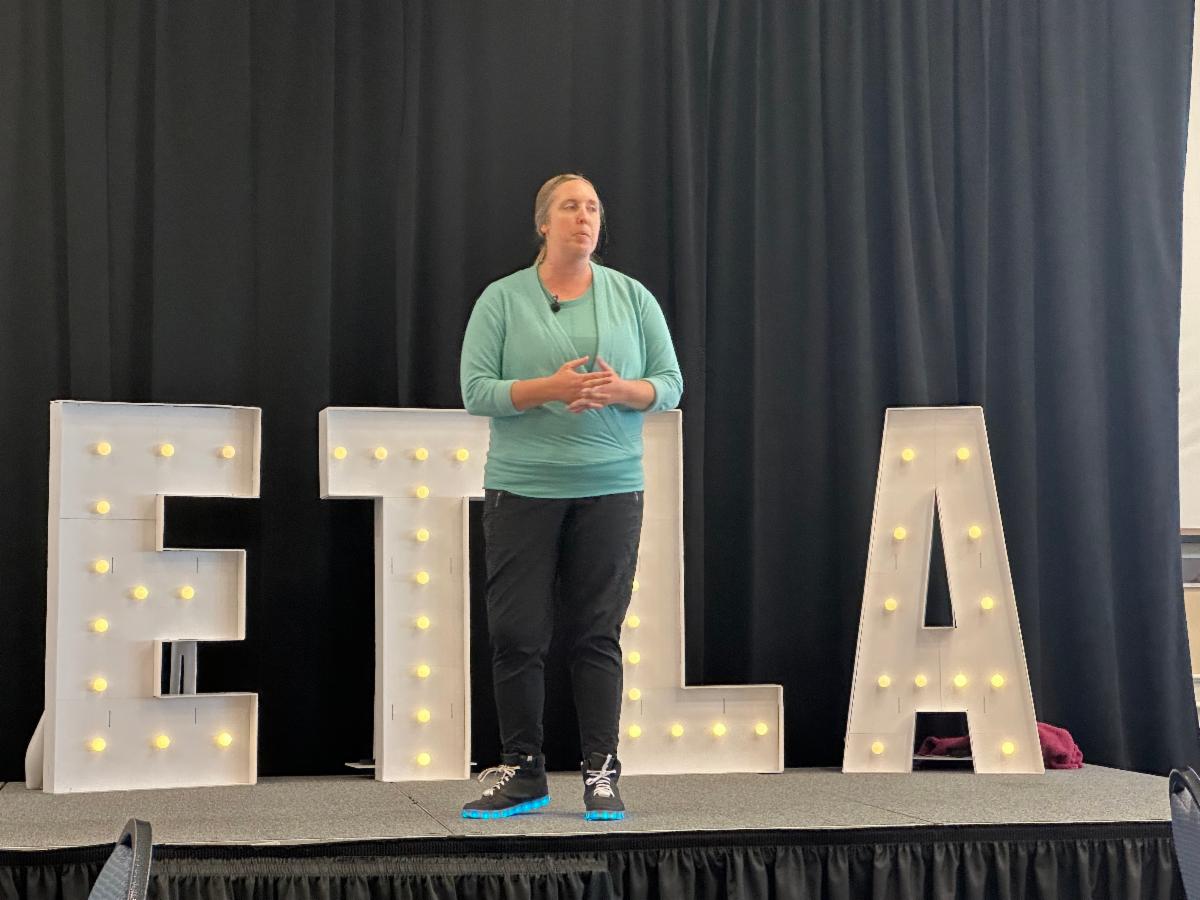
The conference served as a dynamic meeting place for Ohio’s educators to connect with one another. From breakout sessions to workshops, attendees had the chance to engage in deep conversations about innovative practices and the challenges facing their schools. Many left with new strategies to enhance their classrooms, engage their students, and address critical issues such as digital literacy, cybersecurity, and student data privacy. The energy in each session was palpable, with educators eager to implement what they learned and share it with their districts.
Keynotes That Inspired and Encouraged Participants to Bring Equity, Passion, and Innovation Back to Their Schools
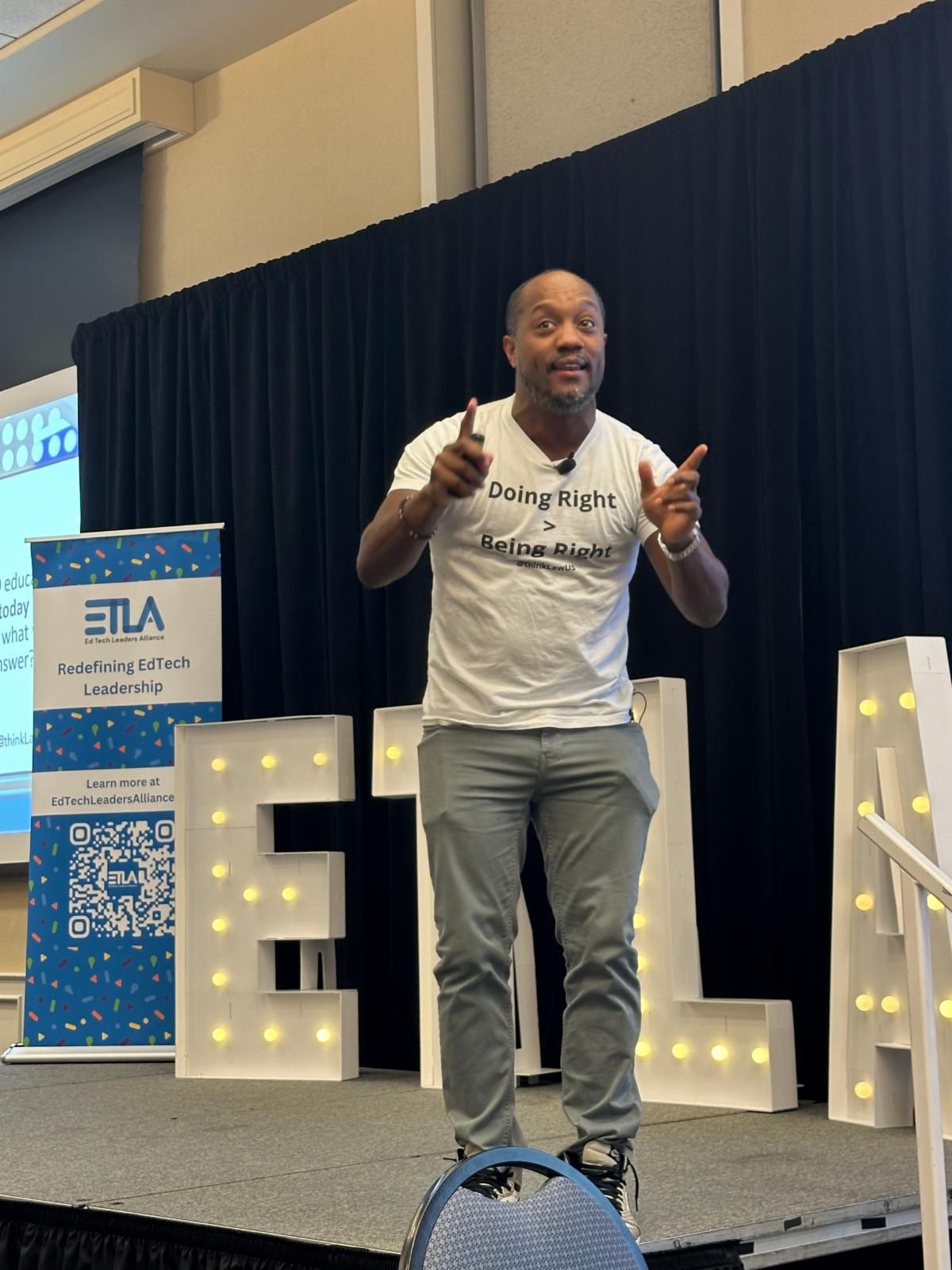
A key highlight of the ETLA conference was the inspiring lineup of keynote speakers. Visionary thought leaders like Colin Seale, Jen Mott, Ken Shelton, and Keith Krueger delivered powerful messages on how equity, passion, and innovation can shape the future of education. Their stories were not only moving but also deeply relevant to the challenges schools face today. Whether discussing the role of technology in leveling the playing field or exploring ways to nurture creativity and critical thinking, the keynotes left participants with a sense of purpose and urgency to drive change in their schools.

Connections and Fun
While the ETLA conference was rich with learning and development, it also provided opportunities to unwind and celebrate the hard work of Ohio’s educators. The social events were buzzing with laughter, camaraderie, and a sense of community. Whether it was reconnecting with old colleagues, meeting new faces, or simply enjoying a well-deserved break, these moments of relaxation allowed everyone to reflect on the conference’s impact and recharge for the work ahead.
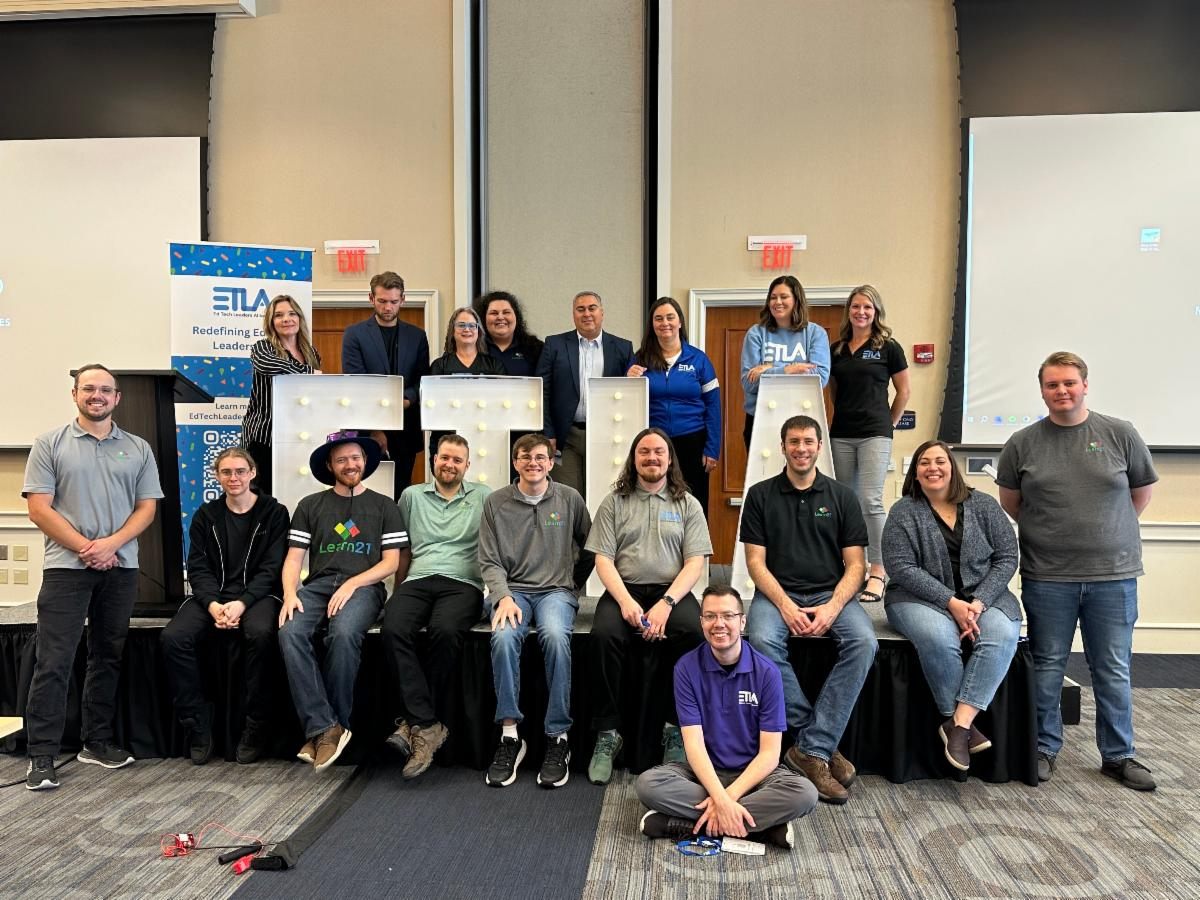
As ETLA continues to grow, so does the promise of a bright future for Ohio’s education system. This week’s conference was not just an event—it was a movement, a call to action for educators to lead with technology, equity, and innovation in mind. We look forward to seeing how the ideas sparked at this year’s ETLA conference will continue to transform our schools and impact students across Ohio and beyond.
Using Multiple Monitors - Mirroring vs Extending
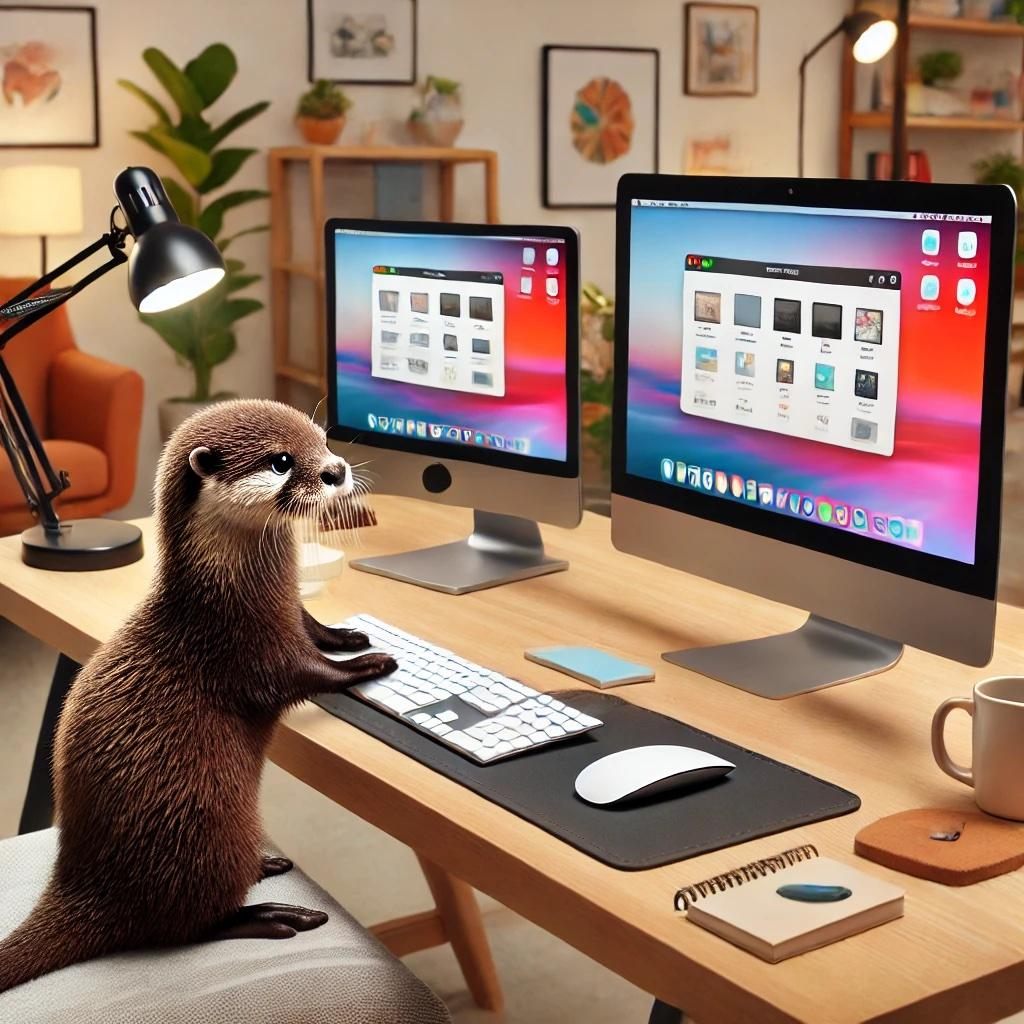
I got my first taste of running multiple monitors shortly after installing Windows 98, and from that point forward I was hooked. There was an undeniable allure in having extra screen real estate, allowing me to expand my workspace, and improve my productivity significantly. The hardest part back then was trying to find space on my desk for two big CRT monitors, but that problem has been solved with the popularity of LCD monitors.
When running multiple monitors, there are two modes that you can use them in: Cloning/mirroring or extending/spanning.
Mirroring Multiple Monitors
This mode is the easiest, but also limited. Mirroring, also known as cloning, simply duplicates your primary screen onto your second monitor. When working with a computer hooked up to a projector this is the mode you are probably using. It is fine, and it does help you keep track of what is being shown to the class, but it is also limited. You’re essentially looking at the same content on both displays, limiting the potential for multitasking as you don’t gain any additional screen real estate. Mirroring is best suited for presentations or situations where an audience needs to see what you see without any differences.
Extending Multiple Monitors
Extending is where the magic happens for anyone who thrives on multitasking. In extend mode, your computer treats the connected monitors as one large, contiguous display. This allows you to drag windows and applications across screens, creating a seamless and expansive workspace. It's perfect for professionals who need to compare documents side-by-side, designers who require extra space for their creative tools, or gamers who want to immerse themselves in a wider field of view. In the classroom, you can show your class content on the projector while you work on tasks on your primary screen. This allows you to do things like grading or email without the class seeing what you are doing.
Finding Your Flow
Most people start off mirroring their computer to a projector/large screen, but after a while they get the itch for better control over what is on the large screen and what is on the primary monitor. As you become more comfortable with managing multiple windows and tasks simultaneously, extending your monitors becomes a natural progression. It allows you to tailor your workspace according to your workflow, giving you the freedom to organize applications based on task priority or function.
Multiple Monitors on Your Desk
Some work areas will have multiple monitors on your desk instead of a classroom which will probably have one monitor and one projector. In this configuration, the monitors are always extended because why would you want to see the same thing on monitors side by side. Multiple monitors on your desk give you a larger work area, where you can work more efficiently with documents and applications. You can have your email open on one screen while drafting a report on another, or keep your research material visible while typing your document.
I Miss it When its Gone
When I’m out and about, I’m without multiple monitors and it does slow me down. I can’t work as efficiently without the luxury of extended screens, and I often find myself yearning for the spacious setup I have at my desk. Switching between applications on a single, small laptop display can feel cramped and cumbersome, making tasks that are normally seamless, feel tedious and inefficient.
Tips and Tricks
Tips for Managing Windows Across Multiple Monitors
While multiple monitors are great, they also exacerbate the problem of managing multiple windows. However, Windows, macOS, and ChromeOS all have built-in features to help you organize and lay out your application windows.
- Snap Assist and Window Management Tools:
- On Windows, use Snap Assist to quickly align windows. Drag a window to the edge of a monitor, and it will automatically resize to fill half the screen. This is handy for comparing documents or keeping relevant applications side by side.
- macOS users can use Split View by hovering over the green maximize button in the top left corner of a window, allowing you to select two applications to display in split-screen.
- ChromeOS supports similar functionalities with its split-screen feature by dragging windows to the sides until they snap into place.
- Keyboard Shortcuts:
- Windows can snap windows to the left or right, along with putting a window in one of the corners with the keyboard shortcut like Win + ⬅️ or ➡️.
- On macOS, Command + Tab allows you to switch between open applications quickly, and Command + Mission Control (F3) provides an overview of all open windows and desktops, making it easier to organize your workspace.
Virtual Desktops
When you don’t have multiple monitors you can use virtual desktops to provide you with a facsimile of that experience. Virtual desktops allow you to create multiple desktop environments within your computer, helping to segregate work and categorize tasks without cluttering a single screen. You may have Gmail open on one desktop while working on lesson plans on another desktop.
On Windows, press Win + Ctrl + D to add a new virtual desktop and Win + Ctrl + ⬅️ or ➡️ to switch between them. Windows + tab will show an overview mode and also allow you to drag and drop windows to different virtual spaces.
Apple calls their virtual desktop implementation Spaces. Users can use Mission Control (F3 or Control + ⬆️) to add new desktops and quickly switch between them. Besides the keyboard shortcuts Control + ➡️ and Control + ⬅️ used to switch among your desktops, there is a trackpad gesture where you can use three or four fingers and swipe left or right on the trackpad to switch desktops.
Virtual Desktops on ChromeOS function similarly to those on Windows and macOS. You can use the Overview mode by tapping the Show windows key (or F5) to see all open windows, then drag and drop them onto new desktop spaces for better organization. You can also use the keyboard shortcuts Launcher + [ and Launcher + ] to switch between the desktops.
Extra Credit
Artificial Intelligence (AI) is all the rage, but can it be used with the classic SAMR Model? SAMR (Substitution, Augmentation, Modification, and Redefinition) is a way to frame technology integration in the classroom and here is how AI can be used within this model.
In Massachusetts, a student’s use of an AI chatbot for a history project led to academic penalties, sparking a lawsuit from his parents. The family contends that there wasn't a clear rule against using AI tools, but the school highlighted its policies against unauthorized technology use and plagiarism, claiming the student misrepresented AI-generated content as his own without proper citations.
Mark Miller suggests that humans thrive on a mix of prediction and chaos, arguing that creativity and unpredictability enhance our predictive abilities. His theory of predictive processing posits that our brains construct models of the world, and thriving involves balancing this predictability with moments of uncertainty. Miller explains that engaging with art, horror movies, or meditation gets us to the "edge of informational chaos," a place optimal for learning and creativity because it challenges and refines our predictive models.
🙋♂️ Bytes and Insights is co-authored by Eduk8me’s Ryan Collins who writes about education and educational technology. He is also the Director of Technology for Kenton City Schools in Ohio. Sign up for his Of Bits and Bytes newsletter at https://eduk8.me!