
Unlocking the Future: Understanding Passkeys for Enhanced Security
As educators, safeguarding our online accounts is crucial, especially when considering our access to student information. While passwords and two-factor authentication have been the go-to methods for cybersecurity, a new player is emerging: passkeys.
What Are Passkeys?
Passkeys represent a new approach to authentication and offer a more secure and user-friendly alternative to traditional passwords. Unlike cumbersome passwords that require memorizing complex strings of characters, passkeys rely on cryptographic techniques. Here’s how they work:
- Unique Device-Based Keys: Instead of a universal password, each device generates its own unique passkey which remains securely stored on the device.
- Signing In with Your Key: When you need to log in, you use your passkey—no need to recall intricate passwords. The key never leaves your device, ensuring a localized and secure experience.
- Cross-Device Convenience: Imagine creating a passkey for Google in your Chrome browser on your laptop. You can then use this same passkey to log in to Google on your laptop. However, this passkey won’t work on another computer. To sign in from a different device, you’d create a new passkey specific to that device. Additionally, passkeys can be set up on your smartphone, allowing you to authenticate seamlessly using your mobile device.
Why Choose Passkeys Over Passwords?
Enhanced Security
- Phishing Resistance: Passkeys eliminate the risk of phishing attacks. Unlike passwords, which can be tricked out of users, passkeys remain cryptographically tied to your device.
- Brute Force Protection: Passkeys are virtually immune to brute force attacks. Their uniqueness—specific to both the site and the device—makes them nearly impossible to steal or replicate.
Simplicity and Convenience
- No More Password Juggling: Passkeys spare you the headache of managing multiple complex passwords. Students, teachers, and everyone else can breathe a sigh of relief.
How to Create a Passkey
- Choose Your Device: Decide which device you want to associate with your passkey. It could be your laptop, smartphone, or any other gadget you frequently use for online activities.
- Access Passkey Settings: Go to the settings or security section of your chosen device. Look for an option related to passkeys or device-based authentication.
- Generate Your Passkey: Follow the prompts to create your passkey. You might need to provide additional authentication (such as your existing password or biometric data) to proceed.
- Keep It Secure: Treat your passkey like a precious possession. Don’t share it with anyone. If you’re setting up a passkey on your smartphone, consider using biometrics (like fingerprint or face recognition) alongside it for added security.
- Test It Out: Log out of any accounts you’re currently signed in to. Attempt to sign in using your newly created passkey. Ensure it works seamlessly.
- Remember the Rules: Passkeys are tied to specific devices. You won’t be able to use the same passkey across different gadgets. If you switch devices, create a new passkey for the new devise.
Tips and Tricks
Google Docs has a comparison tool that will take two documents and show you how they are alike or different. To access it, open up one of the documents you want to compare and go to the Tools menu. Select Compare Documents. Google Docs will ask you to select the other document and then ask you who to attribute differences to, I just leave it as my name. Click Compare and you will then be shown a new document which will show you the differences and what's the same between the two documents:
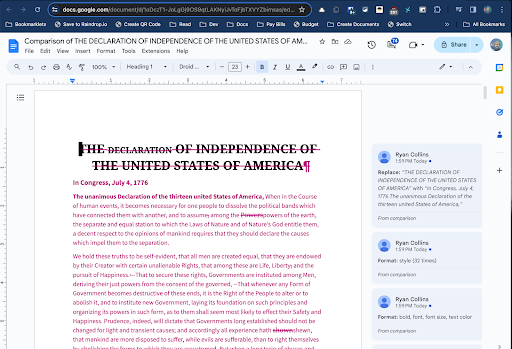
You can easily compare different versions of a document by making a copy of an older version and then comparing that copy with the new version. Teachers can utilize this tool to see if student revisions are significant between drafts. They can also compare work between two students that seems too similar. Instead of painstakingly crawling through each document, you can have the computer do it for you.
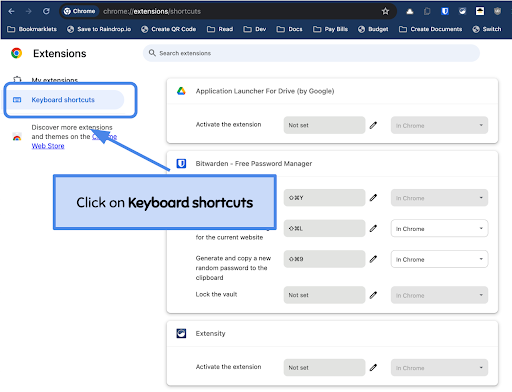
The Chrome based browsers (Google Chrome, Microsoft Edge, etc.) have a way to manage the keyboard shortcuts for the extensions installed. To look at the shortcuts, you can use the three dot menu to access Extensions ➡ Manage Extensions or type in chrome://extensions/shortcuts (that link cannot be clicked on, it has to be typed).
Now you can scroll through the list and see what shortcuts are already used by extensions or change the shortcut to something else.
Reader Tip of the Week
We want to feature your tech tips and tricks! If you have any tips and tricks you would like to share with the Bytes and Insights crew please reply to this email (newsletters@learn21.org) and your tip may be featured in an upcoming newsletter!
Learn21 Update
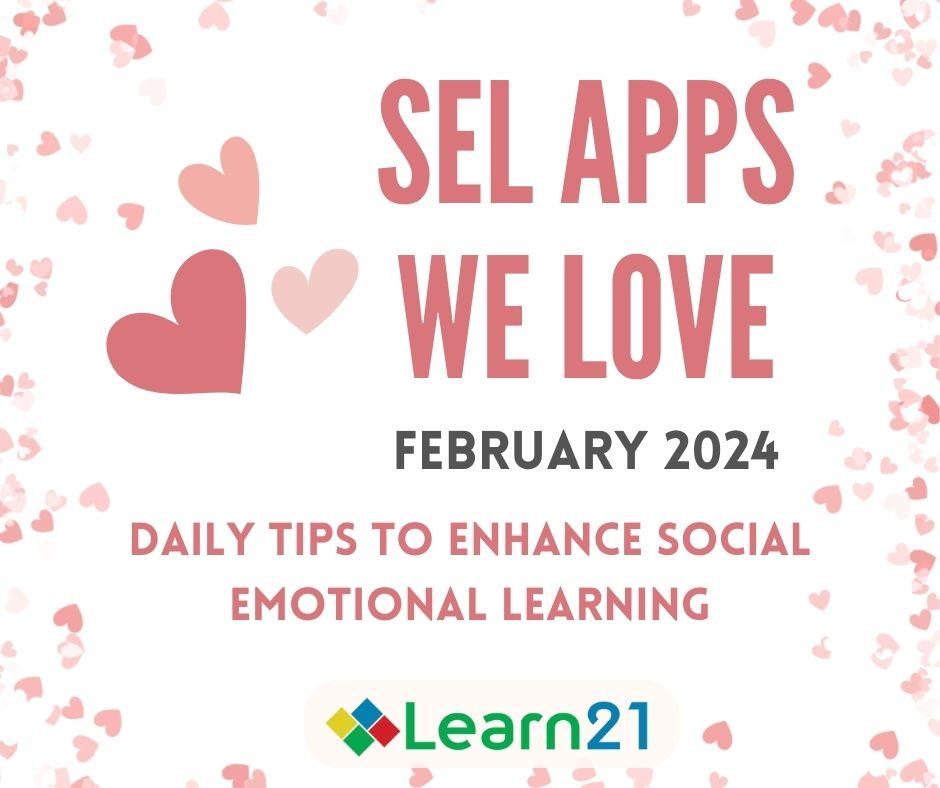
SEL Apps We Love Review: Nurturing Social and Emotional Growth
As we bid farewell to February, we’re happy to share the success of our recent campaign: SEL Apps We Love! Throughout the past month, we curated and celebrated our favorite Social-Emotional Learning (SEL) apps across our various social platforms. Each weekday, we shone a spotlight on an app aligned with one of CASEL’s five domains of social-emotional learning. These domains serve as the bedrock for fostering holistic growth in students:
- Responsible Decision Making
- Self-Management
- Self-Awareness
- Social Awareness
- Relationship Skills
We loved sharing ways to help teachers and students grow in their SEL skills! We know that SEL is crucial in schools and that it can have lasting impacts on a student’s growth. Below are some of the impacts that good SEL instruction can have on students:
1. Fostering emotional intelligence
SEL equips students with the tools to recognize, understand, and manage their emotions effectively. By nurturing emotional intelligence, we empower them to navigate life’s challenges with resilience and empathy.
2. Enhancing interpersonal skills
In an interconnected world, strong interpersonal skills are essential. SEL cultivates social awareness and relationship-building abilities, enabling students to collaborate, communicate, and resolve conflicts constructively.
3. Boosting academic achievement
When students feel emotionally secure and connected, their cognitive abilities flourish. SEL contributes to improved focus, better decision-making, and enhanced academic performance.
4. Creating positive school environments
SEL isn’t just about individual growth—it extends to the entire school community. By fostering a culture of empathy, kindness, and inclusivity, schools become nurturing spaces where everyone thrives.
Learn21’s SEL Services:
Our team of dedicated educators worked throughout February to offer a range of apps that you can use to leverage your SEL practices. We also offer services to schools and educators throughout the school year. These services are designed to seamlessly integrate SEL practices into the fabric of your school:
- SEL Curriculum Development: Crafting engaging and age-appropriate SEL curriculum.
- Implementing SEL Practices: Guiding educators in practical implementation within their classrooms.
- Adult SEL Practices: Supporting teachers and staff in their own social-emotional growth.
- School Culture and Community Building: Fostering a positive and inclusive school environment.
- Technology-Enhanced SEL: Training on leveraging technology to enhance SEL experiences.
For more information on our SEL services, don’t hesitate to reach out to us at engagements@learn21.org. We’re here to support your journey toward nurturing social and emotional growth in both students and educators.
Remember, SEL isn’t just about skills; it’s about creating a supportive environment where emotional growth flourishes. Let’s continue fostering social and emotional well-being in our students and ourselves!
Extra Credit
One piece of technology that I'm too young to have used but really want to learn someday is the slide rule. They fell out of favor in the 70s due to the calculator, but in the 90s Walter Shawlee took an interest in them and "cornered the market." This is a fascinating story but ends with the unfortunate news that Mr. Shawlee passed away at the age of 73 (Archive).
When something becomes commonplace, it's hard for us humans to remember a time before. We tend to believe that those issues have already been conquered and we need not worry. Reading comprehension appears to be in that group as college professors are lamenting that students can't read. It's not so much the act of reading as it is understanding what has been read and how to use that knowledge.
The author lists several reasons why reading comprehension seems to be in decline. His second reason is perplexing. He mentions schools closings due to COVID-19 as a major cause, which doesn't fit anything I've read about the effects of the closings on learning. In fact, US students only dropped one point in reading from 2018 to 2022 Archive and are doing better than most other countries. Although there are other culprits listed to explain reading comprehension issues, very few solutions are shared.
This concept is very close to me with a daughter in college. As an optimist I see it as more of an opening for her. The advice I give her and other students is to take this information and use it to better themselves. If you can read long texts critically, you are going to be more successful than those that can’t.
George Curous digs into how we can use time saved from technology to learn more about the world around us. When I present tips & tricks, I try to impart the wisdom of spending time now to save time over the next few years. One of my goals is to save teachers two minutes a day. Over a 180-day school year that is almost an entire day given back to them.
However, technology is easier to use today ONLY for those that have been using technology. If someone from 10 years ago was put in front of a computer today, there would be a lot of questions on how to do things.
🙋♂️ Bytes and Insights is written by Eduk8me’s Ryan Collins who writes about education and educational technology. He is also the Director of Technology for Kenton City Schools in Ohio. Sign up for his Of Bits and Bytes newsletter at https://eduk8.me!