
Screencasting in Canva
Canva, the design tool that's free for educators, has a built-in screen recording tool that looks to be a great new feature to an already amazing website.
Screencasts
Screencasts are a great way to present information to your students. There are a plethora of options to use to create screencasts. The basic idea behind screencasts is that you record your screen while also narrating your navigation on the screen. Many screencast programs allow the user to include an inset shot of you from your webcam, which is a great way to integrate personality into the video.
Recording a screencast in Canva
Making a screencast in Canva is different than making one in a program like Screencastify. To get started, click on Create a design in the upper right corner and select Video (you may have to search for it):
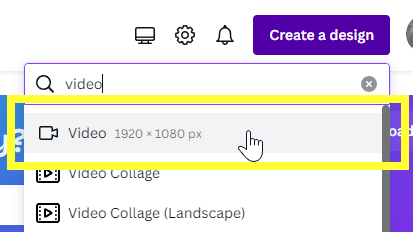
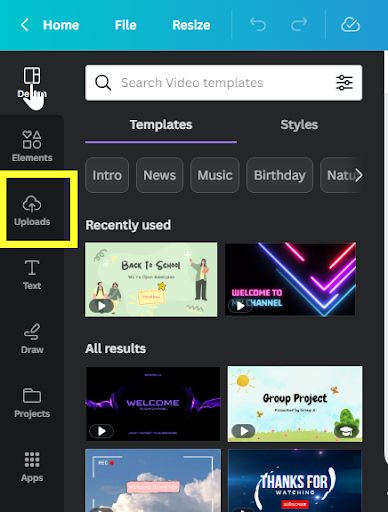
You'll be greeted with a blank canvas. To get to the screen recording tools, click on Uploads on the left side:
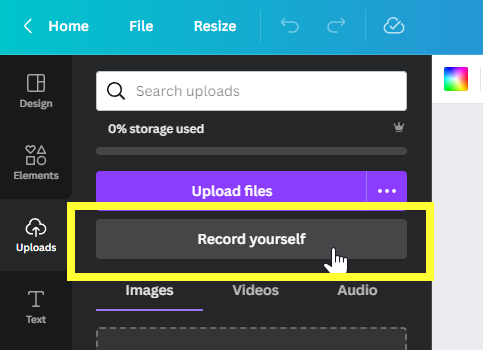
Underneath the Upload files button is a button that says Record yourself. Click it.
At this point, you may be asked several questions about giving access to your camera and microphone to the browser. If you deny this access you won't be able to record yourself, so I would recommend allowing access.
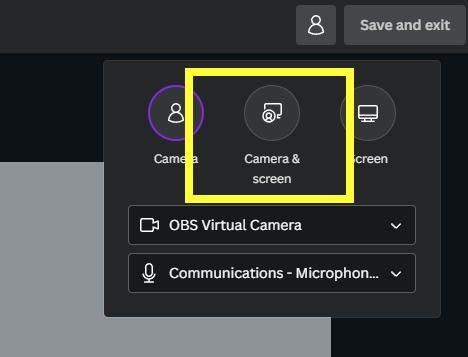
In the upper right you can select what you want to record: camera, camera & screen, or screen. Which one of these you would like to use depends on your use case, but today we're going to look at camera & screen. Click on the camera and screen icon:
Your browser will ask what you want to record. If you are just starting out, I would recommend selecting Entire Screen:
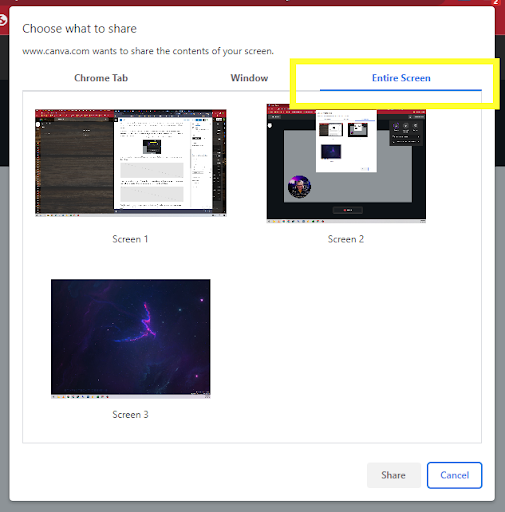
If you have multiple monitors, you'll select the one you want to record. Chances are you only have one so you'll only see one option. Click on the preferred screen to record and hit Share:
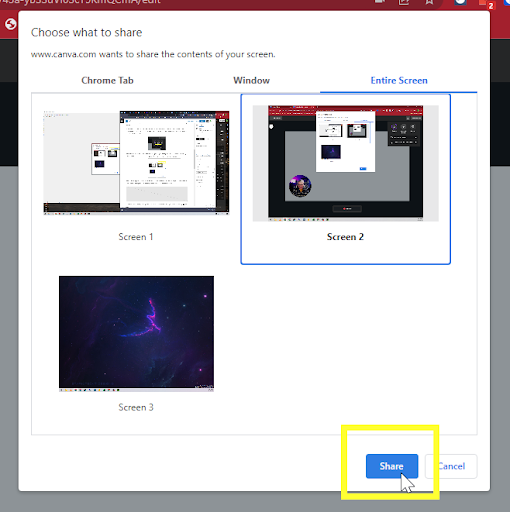
From here you'll probably get a great example of the Droste effect, where your screen recursively appears smaller and smaller. Don't worry about it, once we start recording we're going to minimize this window so that effect won't be in the final product.
Click Hide on the box at the bottom of the screen so it isn't in your final product:

Now, click Record! You'll get a countdown, and the screen will start recording. While the countdown is taking place, you can minimize your Canva window. When you are finished, maximize your Canva window and click the Done button. Review your video, and if you're happy with it, click Save and exit in the upper right corner.
Your screencast is now in the timeline and you can use the Canva video editing tools to crop the video, move around the webcam, or overlay other elements on the screencast. For example, if the webcam video defaults to something pretty big you can resize it.
Screencasting Tips
Here are some of the things I do when creating screencasts:
- Try to minimize takes: I usually record the entire sequence as one long video. Then I'll go in and split the clip and crop it. For example, if I mess up what I said, I start over with that sentence. Then in editing I'll split and crop out the mess up. This usually puts a little glitch in the webcam video portion, but it is minimal interference with the overall video.
- Rehearse what you're going to do: Go through the steps a couple of times to make sure there are no surprises and that you are ready to create a video using those steps.
- Keep it short and sweet: Stay on message to keep your audience engaged.
Tips and Tricks
One of the best ways to stay safe online is by using a password manager. With all of the sensitive data that teachers have access to, the common habit of using the same password everywhere is not in the top 10 of best practices. Besides storing passwords, a password manager can store other information like credit card numbers, social security numbers, health information, and more.
Why don't more people use them? The biggest concern is loss of control. People may think, "How can I possibly operate if I don't keep every password in my head?" Trying to remember all your passwords means that you're going to forget some. Using a password manager is a leap, but once taken, it will free up your mind for other things.
Another perceived strike against the password manager is that if it is hacked, the hacker then has access to all of your accounts. This problem can also be mitigated by selecting a strong password for your manager and securing it with two-factor authentication.
A password manager allows you to have super secure passwords like Unseen-Footman-Granola-Sprite4-Uncover. I don't have to remember it because it's saved, but it would take millions of years to crack. That password is more secure than something like zkN^fL$2FR3usC and a lot easier to remember and type.
There is one big caveat with using a password manager. If you forget your master password for the manager, there is no way to recover it. The master password encrypts the entire password vault to keep out others. Without the master password there is no way to decrypt it for yourself.
Getting Started
The easiest way to get started is to turn on saving passwords in your browser and try it out on a few sites. Google users can access their saved passwords at https://passwords.google.com. Once you are comfortable you can switch to a stand alone password manager. I use Bitwarden because it lets me use different browsers and I can organize other information in the password vault. The Learn21 Team uses LastPass. Find one that works for you.
Reader Tip of the Week
This week’s reader tip comes from Sue Moore, Director of Instructional Technology and Curriculum at Meriden Public Schools
A tip from a fellow Tab hoarder: If you accidentally close a tab (or several tabs) Ctrl+Shift+T will reopen them. I also like the OneTab Extension.
If you have any tips and tricks you would like to share with the Bytes and Insights crew please reply to this email (newsletters@learn21.org) and your tip may be featured in an upcoming newsletter!
Learn21 Update
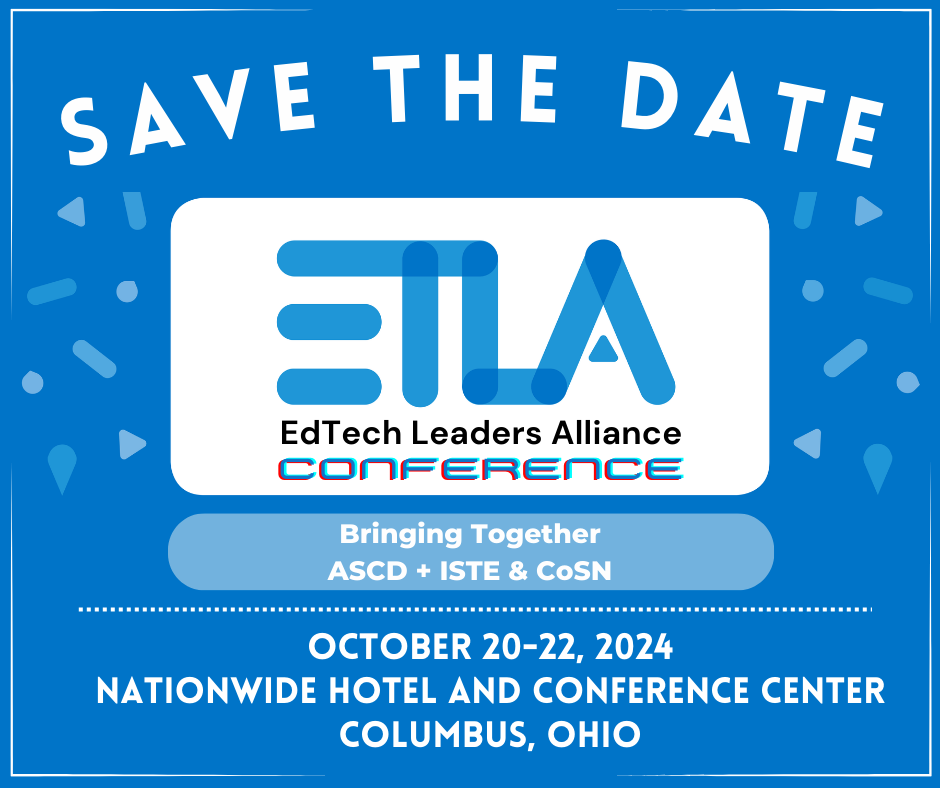
Mark your calendars: ETLA Conference Coming October 2024
We are thrilled to share that the EdTech Leaders Alliance 2024 Conference, sponsored by Learn21, will be held October 20 - 22, 2024!
Formerly known as the Learn21 and Ohio CoSN-ISTE Conference, the EdTech Leaders Alliance marks a new chapter in our commitment to empowering educators, fostering innovation, and embracing the ever-evolving landscape of educational technology.
We are excited for this new opportunity to bring together EdTech leaders in Ohio under one conference. Mark your calendars for Sunday, October 20th, through Tuesday, October 22nd, 2024, as ETLA takes center stage at the Nationwide Conference Center and Hotel in Columbus, Ohio. This three-day event promises to be an amazing opportunity to engage with leading experts, network with like-minded professionals, and delve into cutting-edge discussions, workshops, and presentations that will shape the future of education technology.
We are also partnering with ASCD to offer a full day of sessions and professional development alongside the ETLA conference. You will have the opportunity to attend ASCD sponsored sessions and ETLA workshops on the same day with just one conference registration.
ETLA aims to cultivate a platform where passionate educators, tech leaders, innovators, and advocates converge to explore groundbreaking strategies, share invaluable insights, and collaborate on advancing the integration of technology in education.
As we embark on this transformative journey, we invite you to be a part of this exceptional experience. Join us at ETLA Conference 2024 and contribute to the collective drive towards revolutionizing education through technology.
We will be sending out further updates, calls for presentations, speaker announcements, and registration details soon!
Check out the conference website, consider submitting a presentation, and make sure to register early to take advantage of Early Bird pricing.
Thank you for your continued support, and we look forward to welcoming you to ETLA Conference in Columbus, Ohio this October!

Innovators in Instruction Award Winners
We are so grateful for all the nominations we received for our first Innovator in Instruction Award! We asked you to nominate educators who were at the top of their instructional game in honor of Digital Learning Day. We were so impressed with the nominees. We are excited to share that the following educators are our 2024 Innovators in Instruction winners:
- Erin Budic, Olentangy Local Schools
- Julieanne McClain, Delaware City Schools
- Jackie O'Brien, Indian Hill Exempted Village School District
- Supervising Faculty of Student-Led Tutoring Centers: Andrea Linardi de Minten, Arthur Pascual, Tracy Sangster, Yunxin Zhang, Davidson Academy Online
Extra Credit
Higher Education is increasingly integrating Generative AI into classes. College faculty are exploring Generative Ai’s use for enhancing student writing, preparing slide decks, providing feedback, and preparing students for AI in the workforce. Despite its growing application, only 22% of faculty members have adopted AI, with security concerns, the need for AI training, and ethical implications highlighted as main barriers.
Researchers are looking at the usage of connectives to distinguish between human and AI writing. If you see the phrase "re-imagined," then it could be AI-generated. What's interesting about Faculty Focus’s research is the difference between native and non-native speakers using AI. For example, non-native speakers of French origin are less likely to use a term like "instead" but more likely to use the term "indeed.” Normal caveats apply when looking at student writing, especially how neurodivergent writers are more likely to be flagged as AI-generated.
Back in 2019 I did a FREdTalk about AI titled “Can Curiosity Kill the Robotic Cat?” Ever since then I've been thinking about what an AI teacher could do. Sal Khan has also been looking in to AI chatbots in a tutoring role (Archive link). I have hypothesized that an AI ChatBot could easily be a better teacher than any human teacher has ever been, but now I'm revisiting that theory by switching it to "An AI ChatBot could easily be a better teacher than any human teacher that doesn't use AI."
Over the past couple of months I've been using AI on the technical side of things like writing scripts and programs. These tasks minimize the human component, but they still require human intervention. The AI is great at spitting out functional code, but gets bogged down with logic or creative approaches that would work better than what the AI created. For example, it wrote a script for me that worked except that it failed on edge cases. I tracked it down to the script using a less than when it should have used a less than or equal to. This is where a human teacher's experience and knowledge comes into play. Combine a great teacher with AI and you have a powerful force to reckon with.
🙋♂️ Bytes and Insights is written by Eduk8me’s Ryan Collins who writes about education and educational technology. He is also the Director of Technology for Kenton City Schools in Ohio. Sign up for his Of Bits and Bytes newsletter at https://eduk8.me!