
Blocking students from using search suggestions as a calculator
Students are pretty clever and have found out that "what happens in the Chrome Address bar, stays in the Chrome Address bar."
The Google address bar is pretty great, It helps you to refine searches with suggestions and has the ability to do math. The latter can be an issue though if you have students using a Chromebook for an activity designed to be sans calculator. They can enter the math problem into the address bar and Google Search will happily give them the answer. This activity doesn't show up in history or anywhere else.
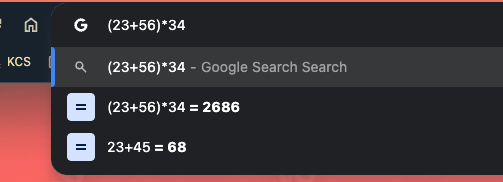
There is a way for the Google Administrator to change the settings to prevent the search bar from becoming a calculator. If you do opt to go this route, please verify that removing this option doesn't eliminate with an accommodation that was provided to a student through an IEP or Section 504 Plan.
Omnibox search and search suggest
By default, the omnibox, the address bar in Google Admin, has two settings associated with it. One is the address to perform search while the other is the address to look up suggestions:
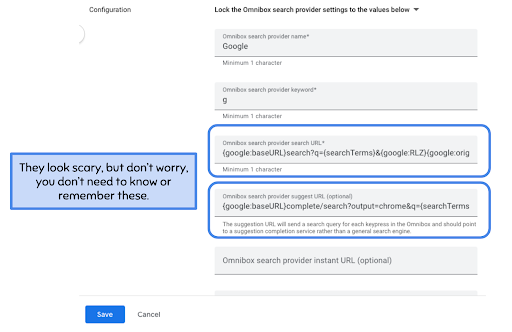
Your administrator can force a new “Omnibox search provider search URL” setting, and omit the “Omnibox search provider suggest URL (optional).”
Removing suggestions for students
The Google Administrator will add a new search engine for students and force Google to use the new search engine. The values for the settings are as follows:
- Omnibox search provider name: Google Locked
- Omnibox search provider keyword: g
- Omnibox search provider search URL: {google:baseURL}search?q={searchTerms}&{google:RLZ}{google:originalQueryForSuggestion}{google:assistedQueryStats}{google:searchFieldtrialParameter}{google:searchClient}{google:sourceId}ie={inputEncoding}
- Omnibox search provider suggest URL (optional): Leave blank
For the affected students, the address bar will now have Google Locked shown:

And when they enter a math problem, nothing happens:
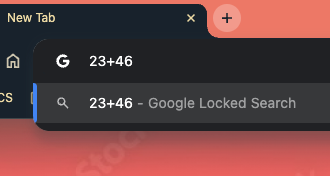
Problem solved, but not in the search bar!
While this article looked specifically at changing the settings of Omnibox search and search suggest to help hinder students using Google search to solve math problems, it can be helpful tool to use in different subjects and situations.
Tips and Tricks
Opening web links into a different browser tab doesn't mean you have to open the tab first. There are a couple of ways to open up web links in a new tab without creating the tab first. Follow these steps to open web links in a new tab:
- Right-click: When you right-click on a link, you will get a pop-up menu of options for the link. On Chrome, the first menu option will open the link in a new tab, while the second option will open it up in a new window.
- Control-click [command-click on the Mac]: By holding down the control [command] key and then clicking a link you will open that link up in the background in a new tab. This is one of my most used keyboard shortcuts.
- Middle-click: You read that and are wondering what exactly a middle-click is. The middle-click is available on most mice using the scroll wheel. Not only does the scroll wheel roll, but if you press down it will also click; a very nice and fast way to open up a link in a new tab.
- Three-finger click or tab: Chromebooks allow you to open a link in a new tab with a three finger click, or tap if tap to click is turned on.
Using Google Drive on the web can be a slow and arduous process, but there is hope. The Workspaces feature allows you to organize and group related files without changing where they are stored. Previously you could create shortcuts to various files and place them in a project folder, but this is time consuming.
Workspaces are found in the menu on the left in your Google Drive:
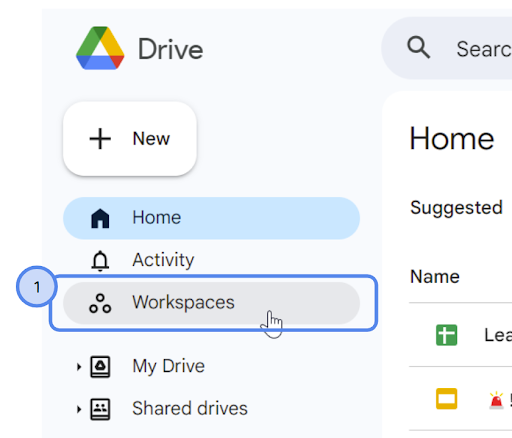
If you've never used Workspaces, you'll get a button inviting you to create a Workspace
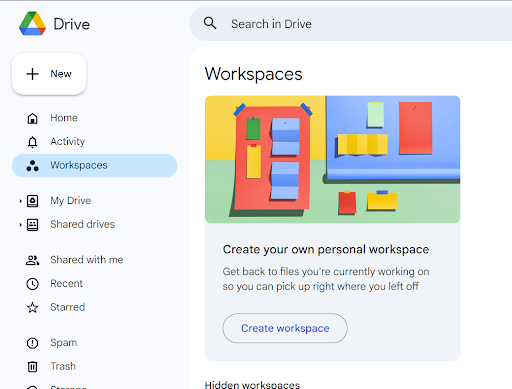
I have the Brainstorm Sandusky conference coming up in May, so I created a Workspace for it. There are a couple of different ways to add files to your Workspace:
When viewing the workspace, you can click the Add files button to add files to it:

Right-click on any file in your Drive and use the Organize menu to add that file to your Workspace:
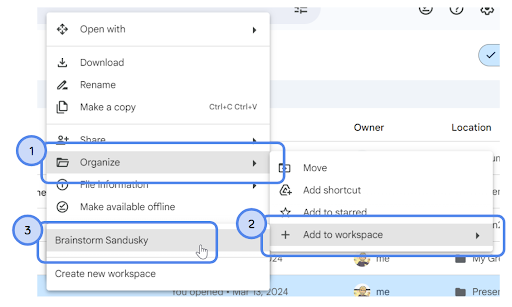
The "files" in a Workspace are not the actual files but are pointers to the files. Deleting or removing them from a Workspace only affects that Workspace and not the original file. Removing the Workspace, even with files in it, won't affect the files.
Reader Tip of the Week
We want to feature your tech tips and tricks! If you have any tips and tricks you would like to share with the Bytes and Insights crew please reply to this email (newsletters@learn21.org) and your tip may be featured in an upcoming newsletter!
Learn21 Update
Learn21 on the Road - The Spring Conference Circuit
The spring conference season is upon us and the Learn21 team has been busy attending conferences across the US. In just one week we attended Brainstorm - Wisconsin Dells, NJECC, and KySTE! At each of these opportunities we were able to engage with educators and administrators to explore the latest trends and solutions in educational technology. We love hitting the road and meeting with our clients and sharing our expertise in EdTech.
At Brainstorm - Wisconsin Dells, our team met many people interested in Learn21’s products and our Tech Director Toolbox, TDT, integration with LocknCharge. During the vendor hall, tech directors and technicians were able to try out the TDT-Asset Incident Kiosk from the student perspective, gaining insights into the self service workflow with LocknCharge FUYL Lockers. The team also had the pleasure of connecting with several districts that Learn21 currently serves and we received much appreciated feedback on each of the TDT modules. The team had a steady stream of interest from attendees stopping by the exhibit hall.
The New Jersey Educational Computing Cooperative, NJECC conference provided a platform for fruitful discussions with educators in New Jersey. We were excited to share Tech Director Toolbox to help them find solutions to their asset management needs. Attendees also were excited to learn that Learn21 is a non-profit and were enthused about our mission-driven approach.
Engagement with Library and Media Specialists, as well as students, highlighted the demand for robust reporting tools like edWise, particularly in New Jersey. Our team also had the opportunity to present a session on navigating the EdTech landscape after the expiration of ESSER funds this September.
At the Kentucky Society for Technology in Education, KySTE, conference, we ran into a large number of teachers and media specialists who were interested in our professional development services. Social-Emotional Learning, Artificial Intelligence, and Student Data Privacy were all popular subjects that attendees were hopeful to bring to their schools. Our teacher-created stickers were a popular treat, too. Since KySTE is a state-level version of the ISTE conference, we expected to run into more teachers. However, we still met a good number of technicians and technology staff members. We loved seeing the faces of attendees when we described how TDT-Asset is a game-changer for managing one-to-one deployments, in part because of its seamless integration with each district's student information system. Having this SIS data at their fingertips allows for easy searching of students and staff for quick deployments and repairs!
Looking ahead, Learn21 remains committed to fostering meaningful connections and driving innovation in education, as we continue to work towards a brighter future for learners and educators alike. We hope that you will stop by our table at the CoSN Annual Conference, in Miami, Florida April 8-10 and the ATLIS Annual Conference in Reno, Nevada April 7-10. These conferences are a great way to make new connections and allow us some face-to-face time with clients. Be sure to stop by and say hi if you see us slingin' ducks.
Extra Credit
Apparently your coffee consumption can lead to solving problems! I'm more of a Diet Mountain Dew person than a coffee drinker, but I may have to look into drinking more, or in my case, some, coffee. Researchers have shown that coffee has some benefits in helping us work better with others and be better at problem solving. The key is finding a problem that doesn’t need a lot of ideas, just one or two good ones.
A lot of the discussion on ChatGPT is about students using AI-generated writing, but what about creative writing? A lot of the use for ChatGPT in creative writing depends on the skill of the writer. But what about editing fiction? If my experience has taught me anything, AI can do a pretty good job at catching spelling and grammar issues, but it struggles with facts or keeping track of what's happening.
As teachers, we want to help our students succeed and one way we can do that is to see what experts are recommending for parents. I had never thought about the difference between self-esteem and self-confidence. While both refer to one’s sense of self, self-confidence is a better indicator of future success.
🙋♂️ Bytes and Insights is written by Eduk8me’s Ryan Collins who writes about education and educational technology. He is also the Director of Technology for Kenton City Schools in Ohio. Sign up for his Of Bits and Bytes newsletter at https://eduk8.me!