
Reflecting on the SETDA Leadership Summit 2024: Sessions, Collaborations, and Future Opportunities
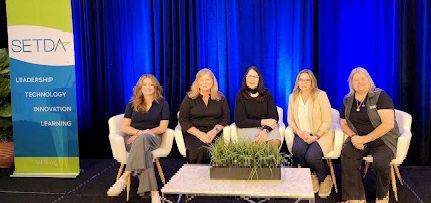
Attending the SETDA Leadership Summit this year was an inspiring experience, full of rich conversations, thought-provoking sessions, and promising collaborations that will drive and guide our work as your EdTech partner and advocate. The SETDA Leadership Summit is a gathering of leaders that is dedicated to empowering learners and enhancing schools through technology. SETDA’s annual event was filled with insights and connections that made every moment worthwhile. Here are some highlights from the Summit and how they will help propel our mission in the coming year.
Sessions that Resonate: Bridging Gaps and Leading with Creativity
Throughout the Summit, sessions touched on critical issues and provided a roadmap for addressing key challenges in education. I had the honor of presenting a session on Leadership that Fosters Creativity, where we explored ways to create environments where creativity and innovation can thrive. The session was warmly received, with attendees sharing that it was one of the few leadership presentations that truly applied to everyone on their team, regardless of role. This meaningful feedback reinforces the importance of universal approaches in leadership, helping educators and administrators alike to lead in ways that inspire creativity, resilience, and growth.
Another standout session was Expanding Connectivity: E-rate’s Role in Bridging the Digital Divide. This discussion was a timely reminder of the need to address ongoing connectivity challenges in our schools, ensuring that students everywhere have access to the resources they need. Federal efforts and state initiatives discussed in sessions like this are invaluable in supporting our work to provide equitable learning opportunities for all students. The CoSN Digital Equity Dashboard is a great (free) tool to help educators understand the connectivity needs in their own areas.
I also found Securing Identities, Data Integration, & Classroom Access Together particularly insightful. This session tackled pressing issues in digital security, an area that only grows more relevant as schools increasingly rely on digital resources and remote access.
Fostering Partnerships and Collaborations
One of the most rewarding aspects of attending SETDA was the opportunity to collaborate with other educational organizations. I spent time with Jill Pierce from TETA, Amy DelCorvo from NYSCATE, and Christine Feenstra with CUE. Together, we discussed ways our organizations can support each other, from shared resources to joint events. Jennifer Womble joined our conversation, offering FETC discounts and benefits for our members—a great step toward expanding access to professional learning. These conversations are one reason why I always say that SETDA’s superpower is creating the conditions for great conversations to happen.
Additionally, I connected with industry leaders interested in partnering with our organization, including Patrick Devanney from ClassLink, Kevin Morrill from SchoolAI, Kurt Beer from Magic School, Nathan Davidson at Five Star Technologies, and Janice Mertes at CDW. Their enthusiasm for supporting ETLA shows the increasing industry interest in supporting EdTech initiatives as partners and not just vendors. These partnerships have the potential to bring meaningful resources and support to schools and educators. If you’re a CoSN Corporate Member, you have an opportunity to vote for either Janice, Nathan, or Patrick to represent you on the CoSN Board.
Opportunities for Professional Development
The Summit also introduced some exciting professional development possibilities. I spoke with Mitch Weisburgh, author of Mindshifting: Stop Your Brain from Sabotaging Your Happiness and Success, about his professional development courses for teachers. These courses, titled Mastering Your Resourceful Brain, Flexible Mindsets for Long-Term Success, and Conflict and Collaboration, will provide educators with tools to navigate today’s challenges and strengthen their classroom skills.
These courses are designed to nurture resilience and adaptability, qualities that are essential for both educators and students. By fostering a growth mindset, these professional development opportunities will help teachers better support their students and collaborate effectively within their schools.
Expanding Connections Across State Education Agencies
Networking with state education agency members from Utah, Nevada, Oregon, Vermont, North Dakota, Georgia, Arkansas, and Nebraska added a broader perspective to the discussions we have at ETLA Each state’s unique approach to digital learning and edtech provides valuable insights, helping us understand regional differences and potential collaboration opportunities. This exchange of ideas strengthens our collective efforts to address issues like the digital divide, cybersecurity, and equitable access.
Looking Ahead: Continuing the Momentum
The SETDA Leadership Summit provided a fantastic platform for collaboration, exploration, and innovation. From impactful sessions and networking to newfound partnerships and professional development opportunities, this event underscored the importance of coming together to tackle education’s most pressing challenges. We are eager to continue these conversations and initiatives in the coming months, exploring ways to enhance support for educators and students across the country.
The Summit reminded me that, when leaders from across the education sector unite around a shared vision, powerful change is possible. Through collective action, we can create inclusive, innovative, and inspiring learning environments for every student. Here's to building on the momentum from SETDA, driving forward with new ideas, and making a lasting impact in education.
Organizing Your Google Docs with Tabs, Dropdowns, and Tables
Google Docs is a great way to create documentation or collaborate on projects because of its user-friendly interface and real-time collaboration features. However, as your documents grow in complexity, organizing them efficiently can become challenging. Luckily for us, Google Docs offers tabs, dropdowns, and tables to streamline organization.
Tabs
Thanks to a presentation by Eric Griffith, our tech department has created a Daily Actions Items document which is a journal of what we accomplished in a day. It includes steps and actions we took. Now we can go back and see when something was done and also how we did it. It has been a godsend on streamlining our department, keeping everyone on the same page even if we are not working in the same area. However, everything in one document has a dark side.
The first year we did it, the document became almost unbearable to use by the end of the school year due to Google Docs falling over with such a large document. For the next year we divided the document into two 6 month documents, which made the performance better but searching worse. This year we’re using tabs for each month.
What are Tabs?
Tabs in Google Docs are a way to organize content within a document, allowing you to separate and switch between different sections easily. This method functions similarly to spreadsheet tabs, but within a Google Doc, enabling you to have distinct areas for various topics or time periods without creating multiple files. Documents automatically get a Tab 1 when they are created.
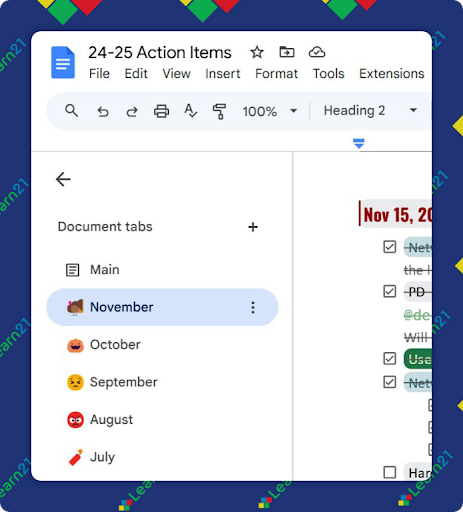
To create a tab, click the +. To rename a tab, double-click on the current tab and replace the text. Tabs can be re-arranged by dragging. Tabs can also be decorated with an emoji.
Each tab is like its own document, but things like searching looks across all of the tabs.
Dropdowns
Dropdowns can be used to enter information from a selection of items. For example, you could have a drop down with the status of a project just as Not Started, In Progress, Waiting On, and Completed. This allows team members to quickly update the status of a task without manually typing everything out, ensuring consistency in entries and making it easier to manage and track progress over time.
How to Create and Use a Dropdown
To create a drop down menu, go to the Insert menu and select Dropdown. A dialog box will appear, allowing you to customize your dropdown options. You can add, remove, or rename options according to your needs by typing in the text boxes provided. Once you have configured your dropdown, you can use it in your document by typing the @. You will get a list of items you can insert, and one of them will be your new dropdown menu.
Pinning the Header of Tables
Tables are a great way of managing information, but if they contain a lot of data, you can lose the header row when scrolling. However, you can pin the header so it will always appear above your data as your scroll.
Mouse over the row you want to pin, and on the left side will be a pin icon. Click it and the header row will then be pinned.
Tips and Tricks
Linking to a Section or to Text in a Google Docs
Once you’ve started to use a Google Doc for a while, you may find yourself needing to refer back to specific sections or pieces of text. For example, you may have a student resource that is several pages long, but you want to be able to share a link that takes the student to a specific place in the document. Google Docs has a couple of different ways to link.
Link to Headings
If you use headings to designate sections of the document (and you really should), each heading has a unique URL. By putting the cursor anywhere in the heading, you can then copy the URL and share it with students. When they click on it, they will open the Google Doc and go directly to the heading.
Bookmarks
You can also add bookmarks anywhere in a Google Doc. To add a bookmark, go to the point in your document where you want the bookmark. Then, click on the Insert menu and select Bookmark. A small bookmark icon will appear in your document, and you can link to this bookmark by right-clicking it and selecting Copy link. This allows you to create shortcuts to specific parts of a document that might not use headings.
Extra Credit
Google has introduced a new AI tool called "Learn About," designed to be more than your typical chatbot. Unlike Google’s Gemini, Learn About adds interactive, visually-rich answers and textbook-like context boxes explaining why things matter and offers more learning paths in its sidebar. When queried with an unreal prompt like "What's the best kind of glue to put on a pizza?" Learn About handles it humorously and accurately.
Prolonged mental fatigue messes with the frontal cortex, leading to less cooperation and more aggression. EEG scans of weary individuals show sleep-like brain activity even when they're wide awake, hinting at why they might make decisions they later regret, like being socially disagreeable or choosing hostile strategies. This is probably old news to a lot of you, who have seen it first hand after the students have been focusing on work too long.
Google has revamped its library of high-quality Google Slides templates to help make your presentations look better than ever. The new templates can help teachers liven up their slides or give more flexibility in creating professional looking presentations.
🙋♂️ Bytes and Insights is co-authored by Eduk8me’s Ryan Collins who writes about education and educational technology. He is also the Director of Technology for Kenton City Schools in Ohio. Sign up for his Of Bits and Bytes newsletter at https://eduk8.me!