
Thankfulness in EdTech: Celebrating Progress, Community, and Wins
As the season of gratitude approaches, it's the perfect time to reflect on how education and technology come together to shape brighter futures. From transformative tools to the champions behind the scenes, we have much to celebrate in EdTech this year.
A World of Connection
We are thankful for the technology that erases boundaries. Technology has transformed how students collaborate and share their voices, whether connecting rural students to global peers or enabling educators to access professional development at the click of a button. EdTech tools remind us that knowledge knows no borders.
Champions of Innovation: The Real MVPs
Behind every EdTech solution is a team of educators, tech specialists, and leaders who bring it to life. Teachers bravely dive into new tools, even when faced with moody Wi-Fi or mid-lesson app updates. Tech specialists troubleshoot with a smile, and leaders ensure innovations align with real-world needs. It’s the people behind the tools who truly transform learning.
Community Connections
Communities like the EdTech Leaders Alliance (ETLA) exemplify the power of collaboration. In less than a year, ETLA has brought together tech specialists, educators, administrators, and thought leaders to share strategies and drive meaningful change. Whether through the ETLA Conference, collaborative webinars, or ongoing discussions, we’re reminded that progress happens when we come together.
Security, Privacy, and Challenges That Make Us Better
In an increasingly data-driven world, we’re grateful for the relentless advocates who prioritize cybersecurity and student privacy. Navigating these challenges isn’t always easy, but they push us to innovate and grow. Every hurdle we face, from digital equity to maintaining trust, reinforces our resilience and commitment to a tech-driven future.
The Power of Play and the Hope for the Future
Let’s not forget the joy technology brings to learning. EdTech isn’t just about information—it’s about creating memorable, engaging experiences. As we celebrate EdTech, we also look forward with hope. Every new lesson, tool, and breakthrough propels us closer to an equitable, empowering future for all learners.
A Season to Celebrate
At Learn21 and as part of ETLA, we’re thankful for you—our readers, community, and the passionate professionals shaping education's future. As we celebrate this season of gratitude, let’s continue to nurture the curiosity, creativity, and collaboration that make EdTech a space for growth and transformation.
What are you thankful for in EdTech this year? Drop us a note; we’d love to hear your thoughts and celebrate with you!
Happy Thanksgiving!
Linking to a Google Sheet in a Google Doc
Some data works well in a Google Doc, and some data works well in a Google Sheet, but what do you do when you have a project that requires information in both? You embed the Google Sheet in the Google Doc!
There are times that you need to reference or update data in a Google Sheet while working on a Google Doc. Google Docs can integrate a Google sheet allowing you to keep your documents organized and ensure that you're always working with the most up-to-date information. Here's how you can achieve this:
Step-by-Step Guide to Linking Google Sheets in Google Docs
- Open your Google Sheet: Start by opening the Google Sheet that contains the data you want to link.
- Copy the data you want to embed: Select the range of cells you wish to include in your Google Doc and copy them using Ctrl + C on a Windows device or Cmd + C on a Mac.
- Open your Google Doc: Navigate to the Google Document where you would like to embed the data.
- Paste the data: Place your cursor where you want the data to appear in your Google Doc and paste it using Ctrl + V (Windows) or Cmd + V (Mac).
- Keep data updated: Choose whether you want to automatically update the data when changes are made to the original sheet. Select Link to spreadsheet to establish a dynamic link between your Google Doc and the Sheet. This means any updates made to the source data in the Google Sheet can be reflected in your document.
- Check for updates regularly: To periodically refresh your document to ensure it contains the most current data you can click the Update option on the table.
Tips for Using the Google Sheet in the Google Doc
Although you have to go to the Google Sheet to make changes, there are a couple of things you can do in the Google Doc.
- Format the table: You can adjust the table formatting in your Google Doc to make it look more visually appealing. This includes changing font styles, adjusting cell alignment, and altering border styles.
- Keep a consistent style: Ensure that the table's style matches the rest of your document by aligning it with the document’s overall theme and formatting practices. This helps maintain a professional appearance.
- Utilize headers: Use headers to clearly label sections of your table, making it easier for readers to understand the data at a glance. You can also pin the header to the top of the sheet.
Tips and Tricks
Adding Pictures to a Google Sheet
There are a couple of different ways you can work with pictures in a Google Sheet, depending on your use case.
- Insert a Picture in Cell: To add a picture directly in a cell, go to the cell where you want the image, click on Insert in the menu, choose Image, and then select Image in Cell. This keeps your image constrained to the confines of a specific cell.
- Insert a Picture Over Cells: Alternatively, to place an image over multiple cells, similar to a floating image, select Insert from the menu, choose Image, and then select Image over Cells. This option allows the image to float above the grid, giving you flexibility in positioning the image as needed without being restricted to a single cell. Once the image is inserted, you can resize it by clicking and dragging the corners or edges. You can also move the image around by clicking and dragging it to your desired location.
Merging Cells to Layout Content
When laying out your sheet in an aesthetically pleasing way, sometimes merging cells can help place content where you need it, or put graphics where you want them. Google Sheets can merge cells from columns and rows, allowing you to create a larger space for headers or to make distinct sections for specific data entries. Here’s how you can merge cells:
- Select the Cells: Click and drag to select the range of cells you want to merge.
- Merge the Cells: Click on the Format menu, then select Merge cells from the dropdown. You can choose to merge all selected cells into one, merge horizontally, or merge vertically depending on your needs.
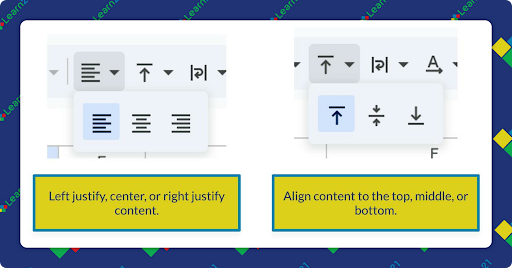
Once the cells are merged you can control the alignment of the content, both left, right, and middle, along with top, middle, and bottom. To control the alignment you’ll use the alignment buttons in the toolbar.
These alignment options are available for non-merged cells too.
Extra Credit
OpenAI, in collaboration with Common Sense Media, has launched a free online course to help K-12 teachers integrate ChatGPT into their classrooms, with topics covering AI basics and pedagogy. While the course has been positively received in several schools, some educators are concerned about the ethical implications of using AI in education, including issues related to privacy and data use. There are also limitations that aren’t properly being addressed. Other issues include the normalization of AI without addressing the problems of misinformation and bias.
New research shows that a busy life for those with ADHD might actually help ease ADHD symptoms rather than make them worse. The study discovered that ADHD isn't a one-way street of symptoms; instead, most people with ADHD see their symptoms ebb and flow over time. Researchers found that during times of high life demands, symptoms seem to lessen, offering a glimmer of hope for structuring your classroom or offering more demanding tasks to help students manage ADHD better.
In a new study from the University of Cambridge, researchers discovered that teenagers experience an increased sensitivity to threats after spending a few hours alone, which persists even when they are online. This research, involving 40 young people aged 16-19, highlights a heightened state of "threat vigilance" resulting from isolation, both with and without digital interaction, suggesting potential long-term impacts on adolescent mental health. Although social media interactions temporarily reduced feelings of loneliness, they did not diminish the stress-related threat response significantly.
🙋♂️ Bytes and Insights is co-authored by Eduk8me’s Ryan Collins who writes about education and educational technology. He is also the Director of Technology for Kenton City Schools in Ohio. Sign up for his Of Bits and Bytes newsletter at https://eduk8.me!