
Learn21 Update
Response from Learn21 on Ohio HB250: Navigating Cell Phone Policies in K-12 Schools
As technology continues to permeate every aspect of our lives, the debate over cell phone access in K-12 schools has become increasingly heated. I happened to be in a Zoom meeting two weeks ago with Ohio educators and student cell phone use was a hot topic! Ohio recently passed a new law requiring schools to create policies to minimize the use and/or access to student cell phones. While the intention behind limiting or banning cellphones is understandable, the implications raise several concerns that need careful consideration.
Student Safety Concerns
A critical concern today in K-12 education is student and staff safety. If student cell phones are locked away, students lose access to a vital tool in emergency situations. In the event of a security breach at the school, or if an individual student finds themselves in a precarious situation, not having immediate access to their cell phone could be dangerous. Bad actors might exploit the fact that students cannot record incidents or contact emergency services, creating a significant liability for schools. As a parent, I’d really struggle knowing that my children might not have immediate access to safety services.
Financial Implications: The ESSER Cliff
Many schools are opting to spend significant amounts of money on solutions like lockers and Yonder pouches to "lock up" student cellphones during the school day. Given the financial pressures schools are already facing, especially with the looming expiration of federal K-12 emergency funds (the so-called ESSER Cliff), this raises important questions about resource allocation. Using scarce funds to store cell phones diverts money away from classrooms and educational programs, potentially impacting the quality of education.
Cybersecurity and Account Security
In today's digital age, multi-factor authentication (MFA) is a key component of cybersecurity. Many students rely on their cellphones for MFA to access their accounts securely. Denying students access to their phones during school hours could hinder their ability to use these essential security measures. According to CoSN's 2024 Leadership Survey, increasing cybersecurity efforts in K-12 education is crucial, and MFA plays an important role in this effort.
Accessibility and Inclusivity
Cellphones are not just communication tools; they are also powerful accessibility devices for many students. Organizations like CAST have emphasized the importance of Universal Design for Learning (UDL), which seeks to make learning accessible to all students. Limiting access to cellphones could disproportionately affect students who rely on these devices for accessibility purposes. Instead of banning cell phones, schools should consider engaging course content that naturally limits distractions while supporting diverse learning needs.
Call to Action
As Ohio schools develop and implement their cell phone policies, it is essential to consider the multifaceted implications. We need to strike a balance that addresses distractions while ensuring student safety, financial responsibility, cybersecurity, and accessibility. I invite educators, parents, and community members to share their thoughts and experiences. How can we protect and support our students without compromising their safety and learning opportunities?
Please share your perspectives in the comments below or join the conversation on social media. Together, we can find solutions that benefit all students.
Introducing Video 8: AI's Role in Promoting Metacognition

The eighth video in the series, "AI's Role in Promoting Metacognition," explores how AI can support students in becoming more self-aware learners. This video emphasizes the importance of metacognition in the learning process, where students are encouraged to think about their own thinking and learning strategies. AI tools can play a significant role in this by providing real-time feedback, personalized learning paths, and opportunities for self-assessment, thereby enhancing students' ability to monitor and regulate their learning processes.
Summary of Video 8:
- Question Addressed: How does AI promote metacognition in online learning?
- Key Points:
- AI's ability to provide personalized feedback and insights to students.
- Tools and techniques that help students track their learning progress.
- Strategies for using AI to foster self-regulated learning and reflection.
For more information on how Learn21 can assist your school in integrating AI and to access the full video series, visit Learn21.org or contact them at engagements@learn21.org.
Technology is a Pack Rat’s Delight
Working in schools does come with some extra privileges when it comes to technology use. One of these privileges is the ability to store an immense amount of data in the cloud. It's usually enough that you don't even think about what you're storing or its longevity. This also means that for people like me, you never get rid of anything, and that can be a problem.
The first issue is the cost of keeping everything. There is a cognitive cost along with a monetary cost. As anyone who has tried to find the picture they know they took can tell you, search can only take you so far. The cognitive cost of scrolling through data can be quite annoying.
The data we store may not take up physical space, but it does come with a monetary cost. Although you may never see this cost due to the provider’s offerings to school, someone, somewhere is dealing with the cost of storing, backing up, and transporting all of this data.
Finally, there is human nature and our ability to forget. Researchers have been investigating why we remember some things and forget others. There's a theory known as "digital amnesia," which postulates that the more we rely on technology to remember information, the less likely we are to remember it ourselves. When all of our data is in the cloud, it's not hard to imagine a future where we become overly reliant on it to the point of not remembering even the simplest of details.
A Secure Cloud?
Another pressing issue is security. Sure, cloud providers promise us the digital equivalent of Fort Knox, but we all know how that story goes. However, this is more how a person secures their account and not a security issue with the cloud provider. Use a long password and two factor authentication where possible. It’s not foolproof, but it is pretty secure for all but the most high profile targets.
The Longevity Gamble
Then there's the question of longevity. How many of you have been loyal to one cloud service, only to find out it's shutting down or being merged into some other entity? The cloud is as ephemeral as, well, a cloud. What happens when your storage provider decides to call it quits or jack up their prices? You're left scrambling to migrate terabytes of data before the digital doors close for good.
The rule for backups is the 3-2-1 rule. Keep three copies of your data. This is your original data and two extra copies. Of the three copies of your data, use two different types of storage. For example, store it in the cloud and on a hard drive. One copy should be kept off-site, separate from the original data and on-site backups.
So do we go with the Cloud?
What can a teacher do? Like with a lot of things, from chocolate to pizza, moderation is the key. Use the cloud, but with a touch of restraint. Clean out your digital attic regularly, keep local backups, and be mindful of what you store. After all, just because you have unlimited cloud storage doesn't mean you need to use it all. Think of it like your classroom closet—sometimes, it's better to declutter and keep only what truly matters.

Tips and Tricks
There are times when you may need to send out personalized emails to parents or students. Gmail Mail Merge or Form Mule are two ways to do that.
One example is sending students the date that they will be presenting in class. We will be sending emails using data in a spreadsheet, with each column having information to merge. In our spreadsheet we will use a column named presentationdate and then reference that in the email.
The email will look like this in Gmail Mail Merge:
Dear @firstname!
You will be presenting on @presentationdate. Please let me know if you have any questions.
And this using Form Mule:
Dear !
You will be presenting on . Please let me know if you have any questions.
Mail merge in Gmail
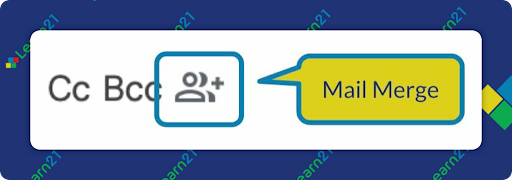
For those on a paid plan for Google Workspace, you have access to mail merge directly in Gmail. To see if you have it, start up a new email in Gmail and look for the Mail Merge button:
If you do not have the feature, skip over this section and go to using FormMule.
Using Gmail’s Mail Merge
Step 1: Composing your email
- Open up Gmail and click the Compose button.
- In the To field enter or copy your recipients.
- Click the Mail Merge icon.
- Type your message. You can use @firstname, @lastname, @fullname, and @email in your message to have that information automatically inserted.
- When done, click send.
When you send the message, each person will receive their own copy. It’s kind of like when using BCC but feels more personalized since the recipient’s email address is in the To.
Instead of typing or pasting the emails, you can also import them from a spreadsheet. Create a spreadsheet with three columns: email, firstname, and lastname (Don’t put spaces in the column names and keep them all lowercase, it will make using the column’s data easier). Enter the information for the recipients.
Step 2: Importing from a spreadsheet
- Compose a new email message and click the Mail Merge icon.
- Click Add from a spreadsheet and select your spreadsheet.
- Match the corresponding columns to the recipient’s information. Click Finish.
- Type your message.You can use @firstname, @lastname, @fullname, and @email in your message to have that information automatically inserted.
- When done, click send.
For those who don't have mail merge, you can use Form Mule
Form Mule is an extension for Google Sheets that allows you to take data in a row and send emails based on it.
Step 1: Install Form Mule
- Open your Google Sheets document containing student emails in column A and presentation dates in column B. A1 will contain the text email and B1 will contain the text presentationdate
- Click on Extensions in the top menu, then select Add-ons > Get add-ons.
- In the Google Workspace Marketplace, search for Form Mule.
- Click on the FormMule add-on and then click Install. Follow the prompts to give necessary permissions.
Step 2: Launch FormMule
- Go to Extensions > FormMule - Email Merge Utility > Open.
- A sidebar will appear on the right-hand side of your screen.
Step 3: Set Up Your Merge Settings
- In the FormMule sidebar, click on Create Merge Template.
- Select the sheet that contains your student emails and presentation dates.
Step 4: Design Your Email Template
- FormMule will ask you to design your email template. You can use the example from above.
- Make sure to use the double curly braces {{ }} to insert merge tags. These tags should match your column headers in the Google Sheet.
Step 5: Configure Email Settings
- In the sidebar, you’ll see an option to configure email settings.
- Set the To field to use the Email column from your sheet.
- Customize the From Name and Reply-To address if necessary.
Step 6: Test Your Email Merge
- Before sending the actual emails, it’s a good idea to test the merge.
- Use the Preview and Test option to send a test email to yourself.
Step 7: Send the Emails
- Once you’re satisfied with the test, you can send the emails to all students.
- Click on Send Now in the FormMule sidebar.
Step 8: Monitor and Confirm
- After sending, you can check your email for any bounce-back messages or errors.
- Follow up with any students who may not have received the email.
Bonus tip: At the beginning of the year I recommend creating a class list Google sheet with student info such as student ID #, first name, last name, and email address. You can then easily copy/paste this information throughout the year.
Extra Credit
Despite the hype, AI can’t replace the deeply human elements of teaching. Authentic learning experiences, driven by empathetic, creative, and context-aware teachers, are essential for preparing students for an unpredictable, AI-driven future. Effective education blends the best of AI’s efficiency with the irreplaceable human touch, fostering skills like curiosity, empathy, and critical thinking.
A recent study reveals that digital leisure reading does not significantly improve students’ reading comprehension compared to traditional print reading. While digital access offers many benefits, the study found that print reading enhances comprehension six to eight times more than digital reading. Younger students, in particular, may even experience a negative impact on comprehension from digital reading, suggesting that a strong foundation in print reading should be established first.
Attending conferences is more about the people and less about the sessions (Archive). They provide a refreshing break from daily routines and offer teachers a chance to focus, reflect, and reenergize. I’ve always gone to conferences with the intentions to learn at least one new thing and connect with a multitude of people, new and old.
🙋♂️ Bytes and Insights is written by Eduk8me’s Ryan Collins who writes about education and educational technology. He is also the Director of Technology for Kenton City Schools in Ohio. Sign up for his Of Bits and Bytes newsletter at https://eduk8.me!