
Meet Learn21's New CEO, Kevin Ghantous

We are thrilled to announce the appointment of Kevin Ghantous as the new CEO of Learn21! With a dynamic background in educational technology and a passion for innovative learning solutions, Kevin is poised to lead Learn21 into an exciting new chapter.
Kevin, alongside Bill Fritz, co-founded the Learn21 and grew it from the original five districts in Ohio to serving and supporting over 3 million students across North America. Kevin has served numerous roles within the organization over our 16 year history and spearheaded several successful initiatives that transformed digital learning environments in schools including the Tech Director Toolbox, edWise platform, and numerous custom engagements. We've also expanded our non-profit support to educators by serving as the Ohio CoSN Chapter, ISTE and SETDA Affiliate, and SDPC Alliance - all of which we are now rolling into the new EdTech Leaders Alliance (ETLA). Kevin’s strategic vision and operational expertise have earned him a reputation as a forward-thinking leader in the field.
Under Kevin's guidance, Learn21 is set to expand its offerings, enhance its existing programs, explore new opportunities, and create lasting positive impacts for our community. His leadership will undoubtedly pull in fresh perspectives and renewed energy to our organization. While Kevin is stepping into his new role as CEO, Bill Fritz is also transitioning into his new role as Chief Officer of Strategy and Operations. We are excited for both Kevin and Bill as they continue to expand the vision of Learn21.
Strategies for Teachers and Students to Avoid Distractions

In the classroom, maintaining focus is crucial for both teachers and students to achieve peak performance. Being "in the flow," a state of heightened concentration and productivity, allows individuals to perform tasks seamlessly and efficiently. However, distractions can disrupt this flow, leading to a significant loss of time and productivity. Research indicates that it can take an average of 23 minutes and 15 seconds to regain focus after an interruption. This makes it essential to create an environment that minimizes distractions and maximizes engagement.
To avoid distractions, start by establishing clear classroom rules and routines. Consistency helps students know what to expect and reduces the chances of unexpected interruptions. For example, a clearly defined start-of-class routine can help students transition smoothly from one activity to another, reducing downtime where distractions can creep in. Visual schedules and reminders can also help keep both teachers and students on track.
Next, consider the physical arrangement of the classroom. Seating arrangements can either contribute to or mitigate distractions. Placing easily distracted students away from windows, doors, or high-traffic areas can help. Additionally, creating dedicated quiet zones or workspaces can provide students with a distraction-free area to focus on their tasks.
Technology, while a powerful educational tool, can also be a significant source of distraction. Implementing guidelines for technology use in the classroom is crucial. For instance, designate specific times for using devices for learning activities and ensure that non-educational apps and websites are inaccessible during these periods. Teachers can use apps and software that block distracting websites, helping both themselves and their students stay on task.
Teachers should also model good focus habits. Demonstrating focused behavior, such as maintaining eye contact and actively engaging in tasks, sets a positive example for students. When students see their teacher managing distractions effectively, they are more likely to mimic those behaviors. Additionally, incorporating mindfulness exercises into the daily routine can help improve attention and reduce stress, which in turn minimizes distractions.
Finally, regular breaks are essential. Breaks allow students to rest and recharge, making it easier to maintain focus during work periods. Structured breaks that include physical activity or relaxation exercises can help reset attention spans and prepare both students and teachers to return to their tasks with renewed focus.
Tips and Tricks
Automatically translate websites
If you are using web resources with your ESL students, you can use Google Translate and share links to specific websites that will be translated for the student. Google Translate works for sites that are read, interactive sites such as games will likely be unusable when translated.
For this example, we will translate the article Electric bikepacking: lessons learned over four days and 250 miles from English to Spanish.
Step 1: Open Google Translate and select the languages
- Open your web browser and go to Google Translate.
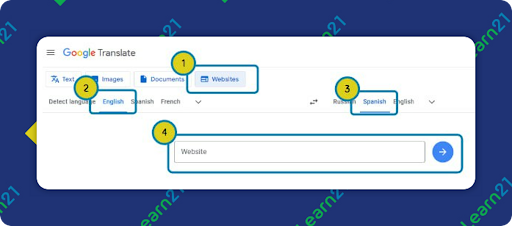
- In the left-hand text box, click the Website tab.
- On the left side of the screen, you’ll see a box labeled “Detect language” or your default language. Click on this box and select the language of the webpage you want to translate (e.g., English).
- On the right side of the screen, select “Spanish” from the drop-down menu. This will be the language into which you want to translate the webpage.
Step 2: Translate the website
- Enter the website address. For our example, it will be https://www.theverge.com/24187989/e-bikepacking-charging-range-lessons-gear-review.
- Click the Right Arrow button. Google Translate will open the translated page in a new tab.
- Copy the URL from the address bar of this new tab.
- Now, you can share this translated URL with your students. You can paste it into an email, a document, or a class webpage.
- With the translated page open you would think you could select a different language and then share the url, but that doesn’t work. The URL will still point to the original language. To translate to another language and have the URL point to the correct translated page, you’ll have to open up the Google Translate tab again and go through the steps above.
And that’s it! Your students will now be able to read the webpage in Spanish.
Creating mind maps with MindMup
Mind maps are powerful tools for visualizing ideas, making connections, and enhancing comprehension. They help students organize thoughts and retain information more effectively. To get started with MindMup:
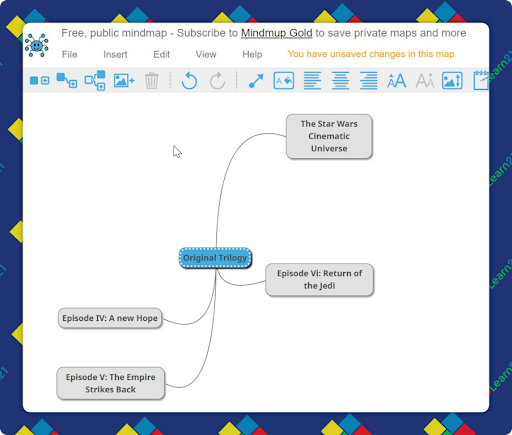
- Visit mindmup.com and click "Create a free map" to start.
- Add a central topic by double-clicking the center.
- Use the toolbar to add child or sibling nodes, depending on the information you want to present.
- Customize nodes with text, images, and links.
- Use the toolbar to format and style your map.
There are a few caveats with the free maps. The most important one is that the mind maps are public so make sure you're not putting any personally identifiable information on your map. Additionally they will only exist for 6 months and you cannot delete them. Also note that MindMup has not signed a data privacy agreement in the Student Data Privacy Consortium (SDPC) registry (at least in Ohio), so Learn21 does not recommend using MindMup with students at this time. You can also check your state registry to see if they are an option in your state.
Extra Credit
Gen Z often relies on online comments to gauge the credibility of news rather than traditional fact-checking. Researchers from Google's Jigsaw found that instead of evaluating information linearly, Gen Z uses "information sensibility," trusting influencers and peers over established news sources. This generation prefers quick, socially validated insights over in-depth articles, prioritizing what keeps them socially relevant and emotionally unbothered.
Creating a classroom website can significantly enhance the teaching experience by serving as a centralized hub for educational materials, improving communication with students and parents, and showcasing student work. These websites facilitate easy access to resources, streamline communication, and provide a platform for displaying achievements, all while fostering a sense of community. With tools like Google Sites, teachers can effortlessly create and maintain a functional and attractive website, ultimately enriching the educational environment.
A study by Peter Scarfe at the University of Reading revealed that ChatGPT-4 outperformed undergraduate students in introductory psychology courses, with AI-generated exam answers largely going undetected and scoring higher than human submissions. AI detection tools like GPTZero and Turnitin, though promising in controlled environments, performed poorly in real-world scenarios, raising concerns about effectively identifying AI-generated content in academic settings.
🙋♂️ Bytes and Insights is written by Eduk8me’s Ryan Collins who writes about education and educational technology. He is also the Director of Technology for Kenton City Schools in Ohio. Sign up for his Of Bits and Bytes newsletter at https://eduk8.me!